

What you get
- A library of checks tuned to your selected provider - for example utilization and waste, rightsizing, and savings across compute, storage, databases, and related services.
- A benchmark report in Analytics so you can review KPIs and trends.
Running a benchmark
- Click Run a Benchmark on the OpenOps home page to start.
-
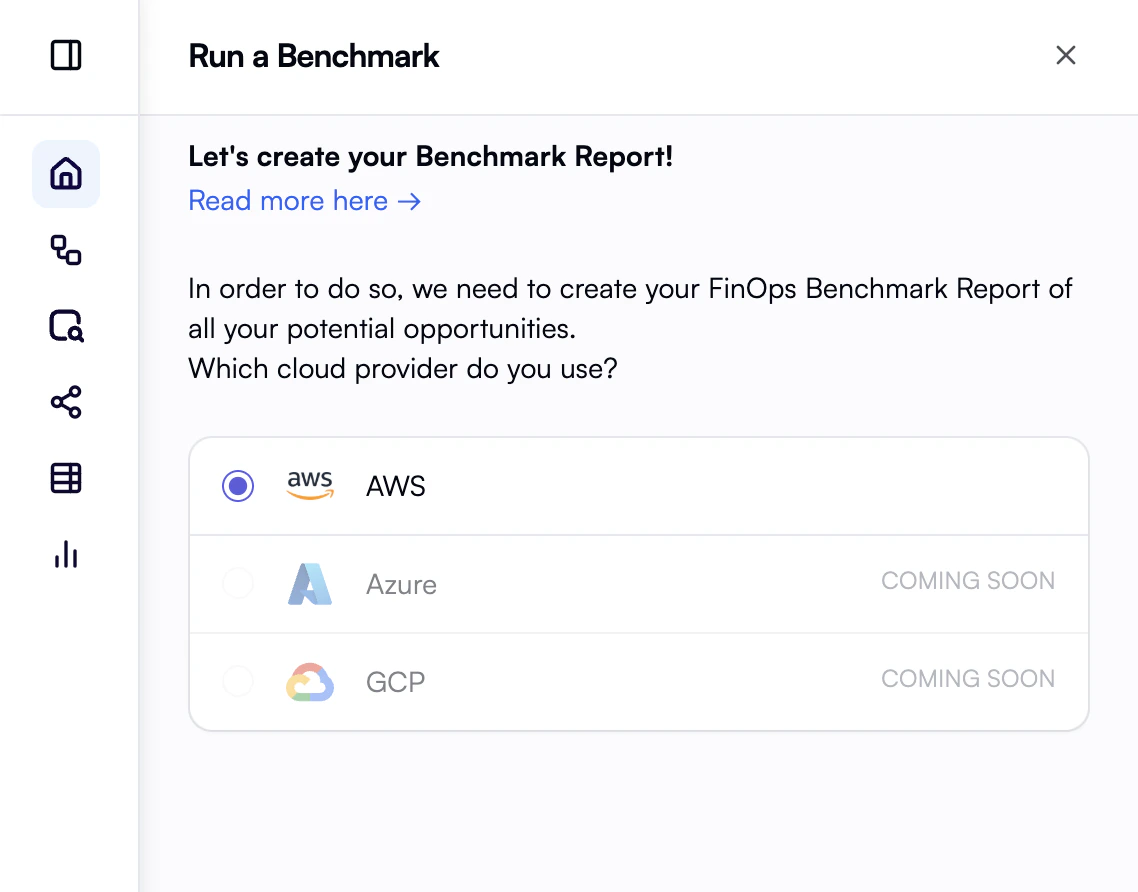
Select your cloud provider. If you have no connection yet, create one when prompted.
-
Choose the connection the benchmark should use.
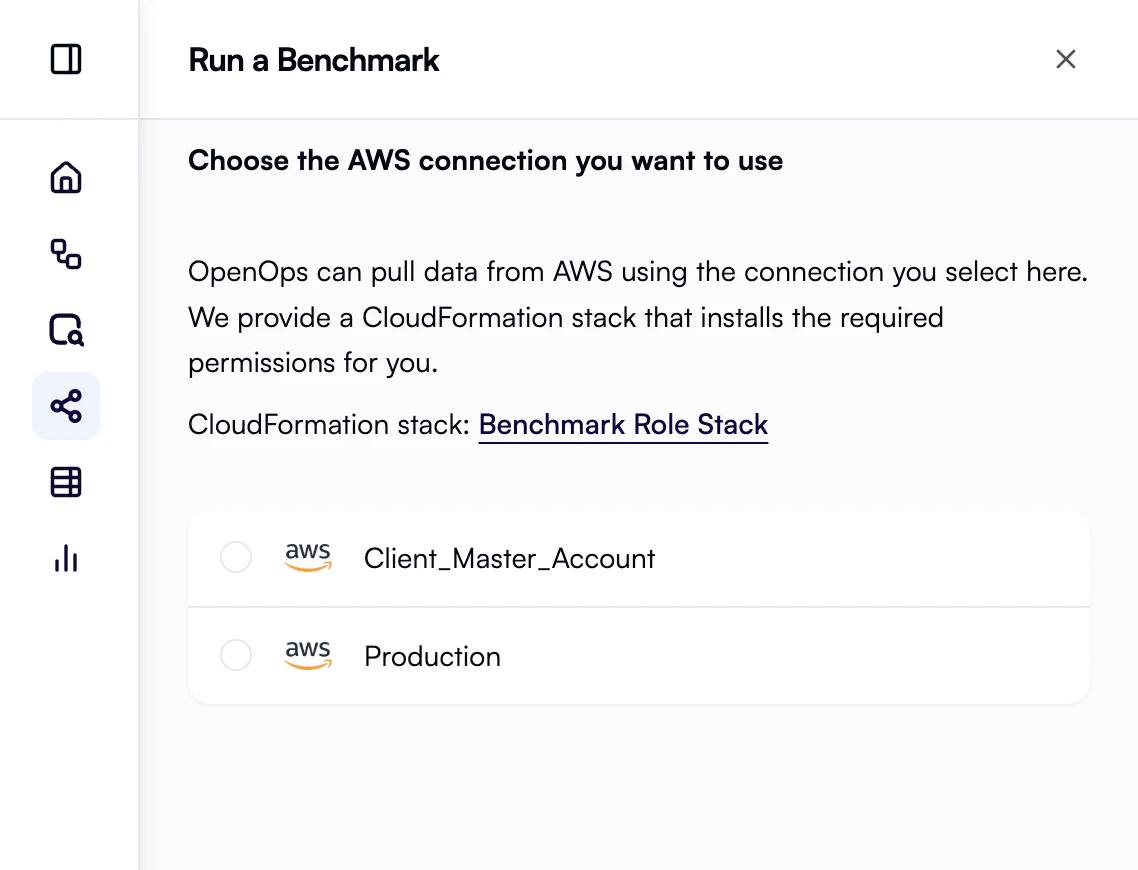
For AWS, OpenOps must be able to assume a role that includes the read-only permissions defined in the Benchmark CloudFormation stack. Use the link beside this step in the wizard to open the stack details. If that role is missing or incomplete, benchmark workflows can fail. For installation steps and templates, see AWS CloudFormation role stacks.
For Azure, OpenOps must be able to use a service principal with the OpenOps Azure Benchmark Reader custom role assigned at the appropriate scope (subscription or management group). This role includes read-only permissions for compute, networking, databases, cost management, and Azure Advisor. If the role is not assigned or lacks required permissions, benchmark workflows can fail. For installation steps and role definitions, see Azure RBAC custom roles.
-
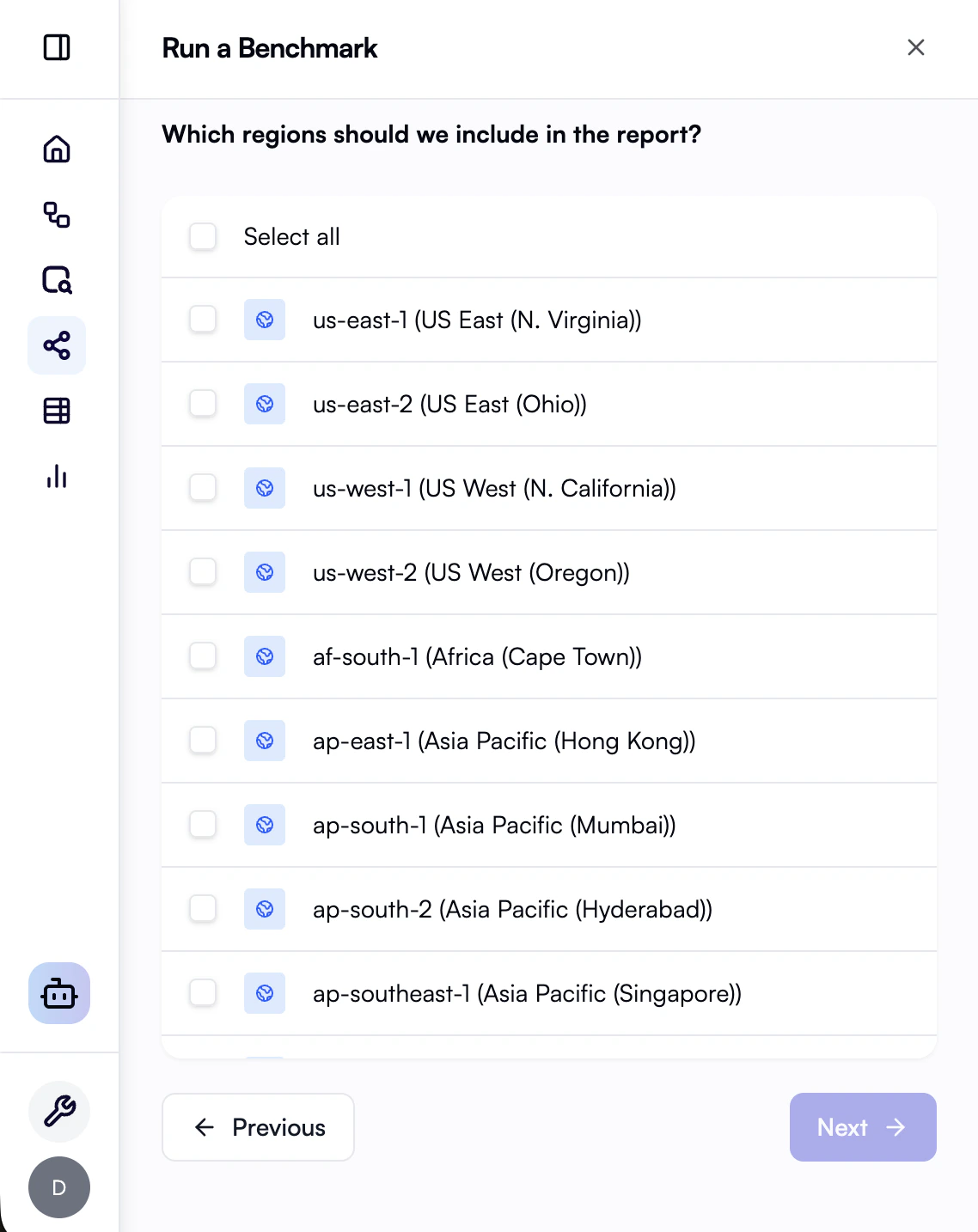
Select accounts or subscriptions and regions to include.
-
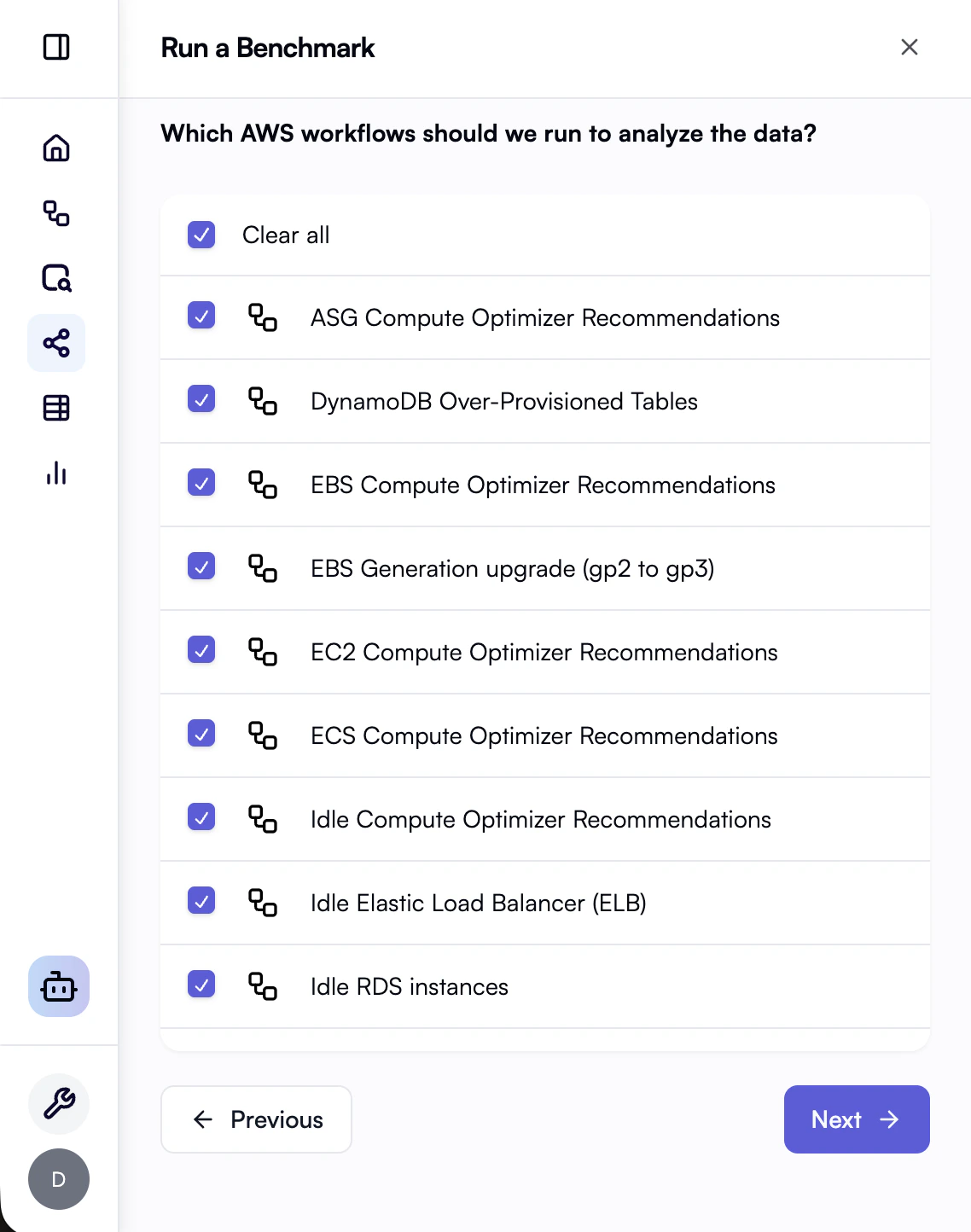
Choose the benchmark workflows that correspond to the cost and efficiency checks you want this run to perform.
- Click Run to execute the benchmark.
- When the run completes, open the benchmark report from the link in the wizard.
Benchmark report
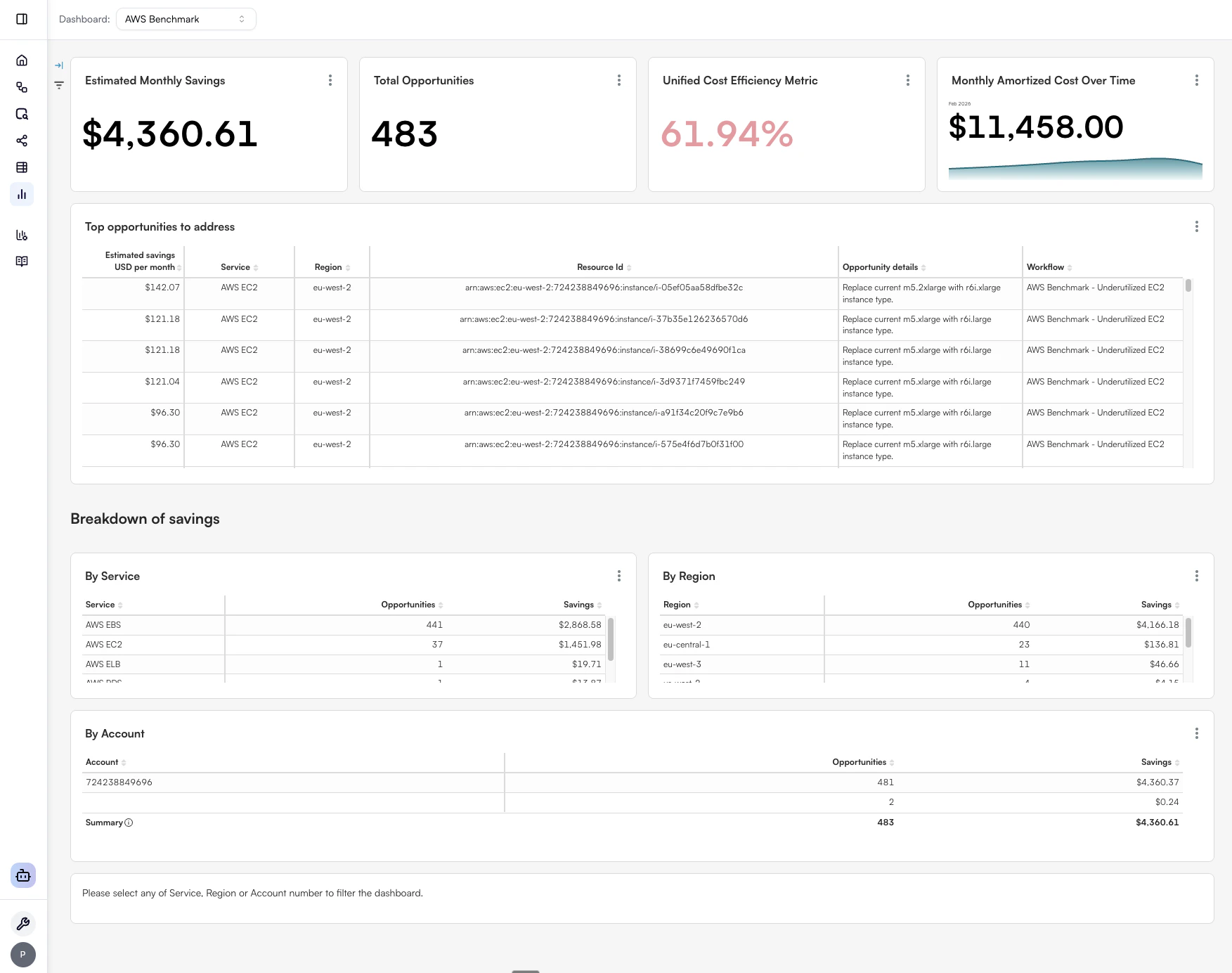
- Summary metrics: For example estimated monthly savings from open opportunities, total opportunity count, a unified cost efficiency metric (savings versus monthly cost context), and monthly amortized cost over time.
- Top opportunities to address: A ranked view you can use to focus on the largest items first.
- Breakdown of savings: Charts such as savings by service, by region, and by account so you can see where optimization potential clusters.