> ## Documentation Index
> Fetch the complete documentation index at: https://openops-ecb4f397-ops-3865.mintlify.site/llms.txt
> Use this file to discover all available pages before exploring further.
# AI Assistance
> How to use AI assistance in OpenOps
export const NarrowImage = ({src, alt, widthPercent}) => {
const className = `narrow-image-${useId().replace(/:/g, '-')}`;
const widthRule = widthPercent ? `width: ${widthPercent}%;` : '';
return <>
 ;
};
OpenOps can use a large language model (LLM) of your choice to help you with:
* Answering questions about OpenOps and FinOps using the AI assistant chat
* Using prompts as workflow steps based on outputs from previous steps
* Generating CLI commands for AWS, Azure, and GCP
* Writing SQL queries for AWS Athena, BigQuery, Snowflake, and Databricks
* Generating JavaScript code for custom code steps in your workflows
You can do all this right inside the workflow editor, without switching context.
## Enabling AI assistance
OpenOps doesn't lock you into a specific AI model. Instead, you **bring your own AI keys** and [connect them to OpenOps](/ai-assistance/llm-connections).
Supported LLMs include OpenAI, Anthropic, Google Generative AI, Groq, Mistral, Perplexity, xAI Grok, and more.
## Using AI assistance
AI assistance in OpenOps is available in several forms:
* The AI assistant chat, where you ask free-form questions
* A standalone **AI Step** action that lets you send prompts that use the outputs of previous workflow steps as context
* The **Generate with AI** command in step properties, which helps you generate commands, queries, and code snippets
### AI assistant chat
Once enabled, the AI assistant chat becomes available in sidebars in every OpenOps view:
You can use it to ask a variety of questions about OpenOps, your cloud resources, and FinOps in general, such as:
* "What can I do in OpenOps and how do I use its [features](/introduction/features-and-benefits/)?"
* "How do I [create a workflow](/workflow-management/building-workflows/) that does what I want to achieve?"
* "What [actions](/workflow-management/actions/) and [connections](/cloud-access/access-levels-permissions/) are used in workflows in my installation?"
* "What are the recent trends in OpenOps [workflow runs](/workflow-management/investigate-workflow-run/), and are there any anomalies?"
* "Why has a specific workflow started to fail, and why hadn't it failed before?"
* "What kind of data does a specific [OpenOps table](/reporting-analytics/tables/) contain, and what workflows use it?"
* "What are the recent trends in the FinOps community?"
To provide in-depth answers about your OpenOps installation, the AI assistant takes advantage of the OpenOps MCP server, which is enabled by default.
It can also work with Amazon MCP servers, namely AWS Cost Explorer MCP Server, AWS Pricing MCP Server, and AWS Billing and Cost Management MCP Server. Connecting to these servers enables you to ask questions about your AWS expenses like "How much did I spend on EC2 last month?". However, you need to explicitly enable OpenOps to access the MCP servers. See [LLM Connections](/ai-assistance/llm-connections) for how to connect.
When available, the AI assistant includes reasoning in its replies, showing which tools (such as MCP servers) it used, displaying the raw data retrieved from those tools, and outlining next steps in plain language.
### AI Step action
The **AI Step** action lets you run AI prompts in a separate step in your workflow, using outputs of its previous steps as context.
You add **AI Step** as you would [add any other action](workflow-management/building-workflows#adding-more-actions). You then specify a prompt in the **Prompt** field and any relevant outputs of previous steps in the **Additional input** section:
Alternatively, you can combine prompt text and outputs from previous steps in the **Prompt** field.
### Generating commands and queries
Whenever you work with an [action](/workflow-management/actions) that requires writing a CLI command or SQL query, you'll see the **Generate with AI** command next to the relevant property in the action's properties pane:
When you click **Generate with AI**, use the AI chat window to describe the outcome you want the command or query to achieve, and your LLM will generate it for you:
Click **Inject command** in the AI chat window to insert the generated command into the action's **Command** field.
### Generating code steps
When existing no-code actions aren't a good fit for your workflow, you can use AI assistance to generate JavaScript code for custom code steps.
In the properties pane of your **Code** step, click **Generate with AI**. When the AI chat window opens, enter a prompt with details about the task you want to accomplish. The AI will generate a code snippet that respects the format expected by the code step. Click **Use code** to insert the generated code into the step's **Source Code** field:
;
};
OpenOps can use a large language model (LLM) of your choice to help you with:
* Answering questions about OpenOps and FinOps using the AI assistant chat
* Using prompts as workflow steps based on outputs from previous steps
* Generating CLI commands for AWS, Azure, and GCP
* Writing SQL queries for AWS Athena, BigQuery, Snowflake, and Databricks
* Generating JavaScript code for custom code steps in your workflows
You can do all this right inside the workflow editor, without switching context.
## Enabling AI assistance
OpenOps doesn't lock you into a specific AI model. Instead, you **bring your own AI keys** and [connect them to OpenOps](/ai-assistance/llm-connections).
Supported LLMs include OpenAI, Anthropic, Google Generative AI, Groq, Mistral, Perplexity, xAI Grok, and more.
## Using AI assistance
AI assistance in OpenOps is available in several forms:
* The AI assistant chat, where you ask free-form questions
* A standalone **AI Step** action that lets you send prompts that use the outputs of previous workflow steps as context
* The **Generate with AI** command in step properties, which helps you generate commands, queries, and code snippets
### AI assistant chat
Once enabled, the AI assistant chat becomes available in sidebars in every OpenOps view:
You can use it to ask a variety of questions about OpenOps, your cloud resources, and FinOps in general, such as:
* "What can I do in OpenOps and how do I use its [features](/introduction/features-and-benefits/)?"
* "How do I [create a workflow](/workflow-management/building-workflows/) that does what I want to achieve?"
* "What [actions](/workflow-management/actions/) and [connections](/cloud-access/access-levels-permissions/) are used in workflows in my installation?"
* "What are the recent trends in OpenOps [workflow runs](/workflow-management/investigate-workflow-run/), and are there any anomalies?"
* "Why has a specific workflow started to fail, and why hadn't it failed before?"
* "What kind of data does a specific [OpenOps table](/reporting-analytics/tables/) contain, and what workflows use it?"
* "What are the recent trends in the FinOps community?"
To provide in-depth answers about your OpenOps installation, the AI assistant takes advantage of the OpenOps MCP server, which is enabled by default.
It can also work with Amazon MCP servers, namely AWS Cost Explorer MCP Server, AWS Pricing MCP Server, and AWS Billing and Cost Management MCP Server. Connecting to these servers enables you to ask questions about your AWS expenses like "How much did I spend on EC2 last month?". However, you need to explicitly enable OpenOps to access the MCP servers. See [LLM Connections](/ai-assistance/llm-connections) for how to connect.
When available, the AI assistant includes reasoning in its replies, showing which tools (such as MCP servers) it used, displaying the raw data retrieved from those tools, and outlining next steps in plain language.
### AI Step action
The **AI Step** action lets you run AI prompts in a separate step in your workflow, using outputs of its previous steps as context.
You add **AI Step** as you would [add any other action](workflow-management/building-workflows#adding-more-actions). You then specify a prompt in the **Prompt** field and any relevant outputs of previous steps in the **Additional input** section:
Alternatively, you can combine prompt text and outputs from previous steps in the **Prompt** field.
### Generating commands and queries
Whenever you work with an [action](/workflow-management/actions) that requires writing a CLI command or SQL query, you'll see the **Generate with AI** command next to the relevant property in the action's properties pane:
When you click **Generate with AI**, use the AI chat window to describe the outcome you want the command or query to achieve, and your LLM will generate it for you:
Click **Inject command** in the AI chat window to insert the generated command into the action's **Command** field.
### Generating code steps
When existing no-code actions aren't a good fit for your workflow, you can use AI assistance to generate JavaScript code for custom code steps.
In the properties pane of your **Code** step, click **Generate with AI**. When the AI chat window opens, enter a prompt with details about the task you want to accomplish. The AI will generate a code snippet that respects the format expected by the code step. Click **Use code** to insert the generated code into the step's **Source Code** field:
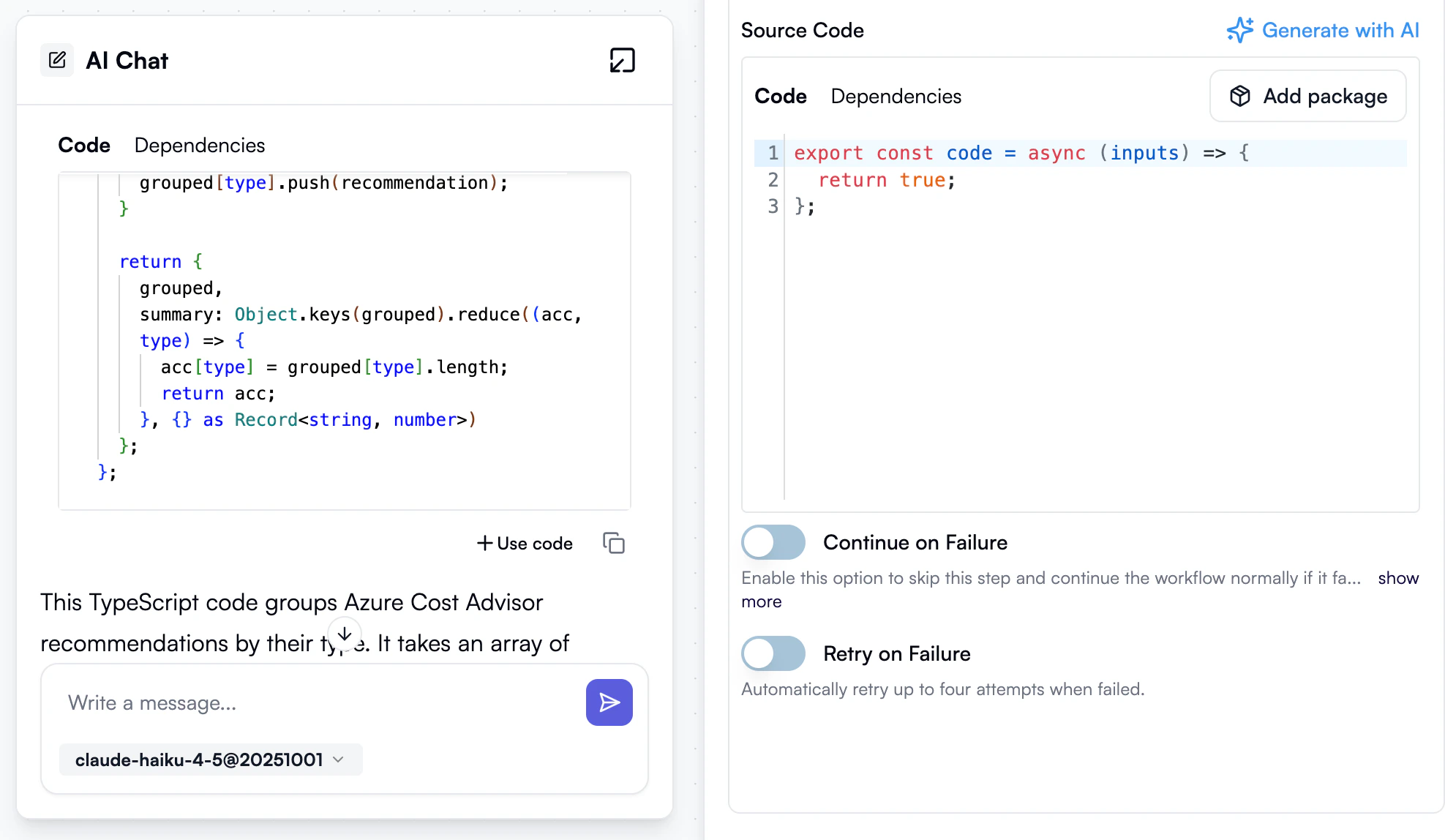 Test the step to ensure the generated code works as expected. If it doesn't on the first try, you can refine your prompt, explicitly provide the output of the previous step, and generate a new code snippet.